Pages

May 31, 2020

Twitter Highlights May 31


Two big things today: I got all the tech stuff done for the Blog Fest; just a few posts left to write about student comments and building a culture to go with networked blogging... and David did the cutest Canva graphics for the slow chat to start on Monday. I can't reisist, so I'll show one of them here: Ungrading Slow Chat for June.


And there are some Twitter highlights too:

I snagged this book as a Kindle after learning about it here from McSweeney's:


From the NMAAHC“Talking About Race” Web Portal.


From Atlas Obscura: Venus of Gyoza (I can use this during Japan week):


New from Tom Gauld (larger view):


A snippet of the Maati Baani video:


More RSS: News, Podcasts, Padlet, etc.


You can use any RSS feeds in Inoreader, which means blogs and also other RSS sources like Diigo. In this post, I'll provide a quick overview of some other places you are likely to find RSS.

And remember, if you can find the RSS, you can make it part of your content network at Inoreader, which means you can then export that content out to other web spaces like inside your LMS, your course website, in a blog, etc.

News Sources

News sources often have RSS feeds, and they often have specialized feeds based on the different content areas that the news source includes.

Just as one example, our student newspaper, the OU Daily, has an RSS feed: OU Daily RSS. I can subscribe to that feed in Inoreader, and have that display inside Canvas LMS, etc.

I could also create a folder with different news sources; for example, here is an education news folder I use in my Inoreader:


One way to use news sources like this is to curate a stream of special interest to your students. So, for example, you can scan through the news articles in a folder, and use a special tag to indicate items of interest to your class, and then having that tag be the stream that appears in your LMS or in your class website.

Podcasts

Podcasts are basically blogs with audio enclosures! So you will find that many podcasts offer RSS feeds. A quick search of "podcast" for feeds that people have subscribed to already in Inoreader returns over 4000 results. That's a lot of podcasts! :-)


Not all podcasts will have easily discoverable RSS feeds, but if you have a favorite podcast and they have not made the RSS feed easy to find, contact the podcast developer. They probably can give you the feed address. If not, your inquiry might prompt them to turn on the RSS feature (for example, at SoundCloud, the RSS feed is not automatic, but it's easy for a podcaster to choose to turn on SoundCloud's RSS feature).

Padlet

Padlet is a popular tool with teachers, and it has RSS, so you can subscribe to new content in a Padlet via Inoreader. Just paste in the Padlet address, and Inoreader's autodiscovery will find the RSS feed for you:


So, if your students are creating content with Padlet in addition to their blogs, you can add the Padlet content feed into the same folder as the student blog feeds. It's all RSS!

Hypothes.is

I don't use Hypothes.is with my classes, but it is a powerful tool, and it has RSS features. Maybe somebody who is using Hypothes.is will experiment with Hypothesis RSS feeds in Inoreader.  Some resources to help with that:
Atom & RSS Feeds for Annotations (from Hypothes.is)
Hypothes.is RSS Feed Widget (from Alan Levine, RSS guru)
If you have examples or tips to share of Hypothesis RSS and Inoreader, let me know!


Okay, that is the last of my Inoreader blog posts; the remaining posts in this series will be about other aspects of running a student blog network, starting with Comments and Randomizers.


More about RSS: Diigo


So far I've emphasized RSS content from blogs (since the focus here is on running a student blog network), but you can also use Inoreader to collect and redisplay content from other RSS sources. In this post, I'll show how you can use the bookmarking service Diigo to generate RSS content.

Diigo Bookmarks

I wrote a post here earlier about some basic Diigo bookmarking features, including how you can snag thumbnail images for the items you bookmark: Blogs and Diigo. See that posts for how to use Diigo to bookmark web content.

In this post I'll focus on how you can subscribe to Diigo RSS and then mix that content in with other content in Inoreader, exporting it to your class website or to an LMS.

Diigo RSS

At the bottom of every Diigo display page, including search results, you will see the RSS icon, which you can click to get the RSS feed. The icon is to the right of the display options:

For example, here is the RSS feed address for the items that I've tagged with #ungrading:
https://www.diigo.com/rss/user/lauragibbs?key=d6f0bfedadf90c44b2909bdea8e9f77e&query=%23ungrading&sort=updated

It's a scary-looking URL and the contents are not user-friendly either, but that's exactly what Inoreader needs in order to turn that RSS feed into an Inoreader display, like this:


It's just like the feed for a student blog, except this time the RSS is coming from Diigo. One thing to note is that it does not update as quickly as a blog feed does (I think Inoreader pings the feed every hour), but you can hit the manual refresh button if you want Inoreader to ping the feed for the latest results.


With a pro account, you can also boost the refresh rate on selected feeds (you can manage feed boosts via the Subscriptions panel in your Preferences).

Inoreader Export for Diigo RSS

So, just like you can export student blog content using HTML Clippings, you can do the same with these Diigo bookmarks that Inoreader grabs via the RSS. Why would you want to do that? Well, Diigo is one of those sites that blocks the use of iframe to embed Diigo inside another site. That means if you want to display Diigo bookmarks inside a website or inside the LMS, you need to use a service like Inoreader to do that.

So, in the same way that I embed the student blog stream in Canvas, I can display a Diigo bookmark stream in Canvas also. Here's a Canvas display of Diigo bookmarks related to feedback for example:


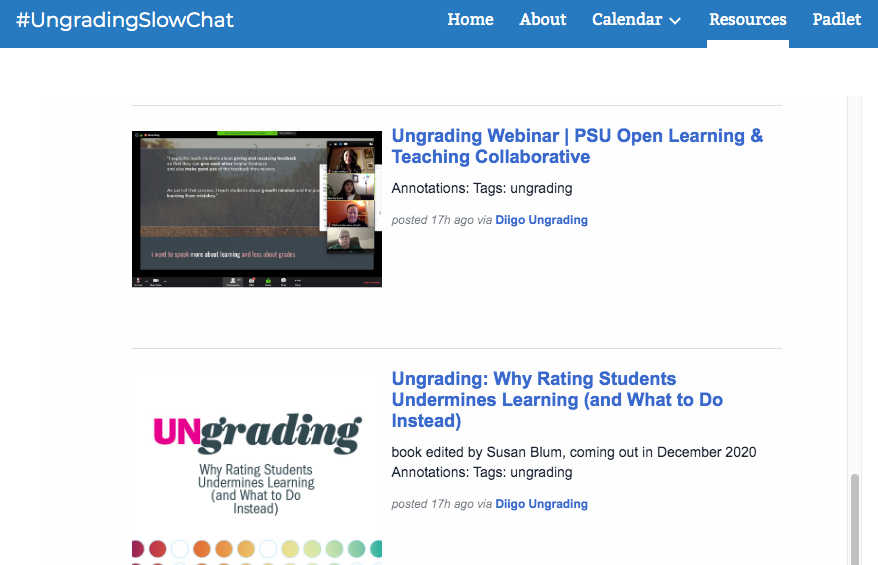
And here's an example of a Diigo stream embedded in a Google site; these are resources related to ungrading:


In both cases, I am using the Inoreader HTML Clippings to display those Diigo bookmarks, and it updates automatically as I bookmark and tag new items in Diigo.

Anywhere that you can embed an iframe, you can embed Inoreader content... which includes Diigo bookmarks. Even the thumbnail image shows up. Diigo is a powerful tool, and with Inoreader you can share your Diigo content more widely and in new contexts!


So, Diigo is one of my favorite non-blog RSS sources, and next up I'll provide a quick overview of more RSS content sources: News, Podcasts, Padlet, and more.


Inoreader Search


The Inoreader Search features are amazing; I'm not even going to try to document them all here. Instead, I'll refer you to this overview of Inoreader Search features (including the very powerful Active Search, which is a pro feature).

What I want to discuss here is the free Inoreader search feature which allows you to search all the content in your Subscriptions, including folder-specific searches. That is what gives you the ability to search all your students' blog posts. I use this feature in all kinds of ways, but one of the most important is to make connections between students.

For example, as I am reading the Favorite Places posts during the Orientation Week, one student might mention a specific city or vacation spot, etc., and I'll remember somebody (but who?) also mentioned that place; I just use Search to find the other student, and then I can leave comments for both students alerting them to their common interest. Or I'll notice that someone did a version of the story of how Ganesha got his elephant head; I can use Search to find other students who did a version of that story and let them know so they can compare versions, etc.

In the LMS, student content is spread out through different parts of the system (discussion, assignments, etc.), and there is no global search in Canvas (on the very sad subject of Canvas Search, see this post: The Paradox of Canvas's "Big Data" and Lack of Search). With an Inoreader student blog network, all the students' work leaves a trail in their blog, and Inoreader's Search feature lets me follow those trails and find connections.

One of the biggest advantages of digital content is being able to search that content. So, the lack of good search features in Canvas is one of its biggest drawbacks... while the search features in Inoreader are a big plus!

How Inoreader Search Works

You can search in a specific feed (i.e. an individual student's blog), or in a specific folder (i.e. all the students in a class), or a specific tag (i.e. a specific assignment).

To search in a specific feed, for example, click on the feed in the left-hand menubar to highlight that feed, and then type your search term in the search box. You will then see results for that specific feed:


You can also click on various filtering options; for example, you can expand the search the folder level using that dropdown, as well as other search filtering options.

As always, the Inoreader URL is very clear, and you can even bookmark a search term if you want:
https://www.inoreader.com/search/subscriptions/music

The URL does not contain the feed-specific parameter; it just shows the search term: music. If you bookmark that URL, it will show you "music" across your subscriptions, which you can then delimit using the dropdown filters:


I don't actually have any search terms that I bookmark, but I really appreciate how Inoreader URLs work. If there is a search term you want to bookmark in your browser, you can do that easily!


Next up: I'm going to revisit the power of RSS and talk about RSS content sources beyond the blogging world, starting with Diigo RSS.


Inoreader Star for Workflow


I often joke that Inoreader is my LMS, and I certainly spend way (WAY) more time with Inoreader every day than I do in Canvas, my school's LMS. In this post, I want to describe one of my favorite features for workflow in Inoreader: the Star feature. If you use the Star feature in Gmail or Google Drive, you already know how the Inoreader Star works: it's a simple flag that you can turn on or off for any content item (i.e. any student blog post).

The way I use the Star in Inoreader is to let myself know that I've left a comment on a blog post. That's important for me in two ways:


Star for specific assignments. During the Orientation, I leave a comment on every student's Favorite Places Post and on their Introduction. Those are the only posts of the semester where I leave a comment on every post, and it takes me a while to do that. I finish all the Favorite Places comments during the first week, but it takes me another week or two to finish all the Introduction posts. To keep track of that, I go to the tag for that post and I use the list view, adding the star as I comment one each post:


I know I'm done when every post in that folder has a star.


Star for individual students. Aside from the Favorite Places and Introduction posts, my comments on people's blogs are random; the blogging space is really more for the students to interact with each other (I mostly interact with them through their projects). But I do comment on a few blogs at random each week along with posts the jump out at me for some reason in the stream, and I use the star to mark the blogs I've commented on. That means I can also look at an individual student's blog overall and see how often I've commented:


I rely on the randomizer to help me comment on everybody's blogs periodically, but I can also review all the blogs very quickly by clicking through them to see where there are stars.


So, the Star is very useful for me in keeping track of my interaction with the students in their blogs. Next up: the Inoreader Search feature, which I use to help me connect one student to another.


Inoreader Bundles


The Inoreader export in the form of HTML Clippings is a premium feature, but you can also combine and share feeds in the form of Inoreader Bundles, which is a free feature. For someone to view your Bundle, they also need to have an Inoreader account (again, a free account works). You can find out more at the Inoreader Bundles page; here's a quick overview step by step:

Make a Bundle

To make a bundle, go to the Preferences (click on your user image in the upper right-hand corner), and then choose Bundles from the Collaboration menu.


You will then see the Bundles screen which lists all the Bundles you have made, plus a New button in the upper right-hand corner.

You can browse your feeds by folders as you add them to the Bundle, so if you have all your course-related feeds together in a folder, it's easy to add them quickly to the Bundle. (But remember, if you add new feeds to that folder later, you'll need to come back and add them to the Bundle too.)


Remember to click Save when you're done.

Share the Bundle

You can then click on the Share icon to get the address for the Bundle which you can share with others. For example, here's the address for the Summer 2020 Blog Fest Bundle:
https://www.inoreader.com/bundle/0014cd640a7d

As you can see, a Bundle URL is not specific to your account, although you are the only one who can edit the bundle. You can share this link and anyone with an Inoreader account will be able to view the Bundle. You have the same different viewing options for a Bundle as for other Inoreader content:


So, for example, here's the card view of that Bundle:


That's it! I don't have a lot to say about Bundles since I focus on the HTML Clippings export feature for sharing Inoreader content with other people. But if you want to use just the free Inoreader and make the class stream accessible to your students, this is one way to do that. Especially if you want your students to learn how to use Inoreader for themselves, a class Bundle would be a great way to get started.


Next up: one of my favorite features for workflow in Inoreader: Inoreader Star for Workflow.


May 30, 2020

Twitter Highlights: May 30


I did something really fun today! With David Buck's help, we've got this Ungrading Slow Chat project going, so I'm going to be doing some ungrading curation at Twitter this summer too: Ungrading Resources.


Via Dictionary.com, emojis for the new year: New And Handy Emoji.


Inspiration quote via Jon Winokur:


Something fun from McSweeney's: Ambiguous Grammar.


Via Tanmay Vora (someday I have got to learn how to do this!):


RSS goodness from Alan... I wonder if I can think of a cool Hypothesis project for Fall? Hypothes.is RSS Feed Widget.


Great post from Open Book Publishers on how they do business: cost of Open Access books.


Via LACMAMeet the Musicians – Christian Moraga of Conganas.


From Lady ScienceColonial History of Archaeology and Museums.


Two new items from Project GutenbergIndian Basketry and Kachina Dolls.


Beautiful new song from Maati Baani:


May 29, 2020

Blogs and Diigo


This post may or may not be of interest: I want to say a few words about how I use Diigo as a way to manage blog content and workflow. Blog labels (tags, categories) are useful up to a point, but if you want to have even more powerful ways to keep track of the contents of a blog, especially if you are using the blog to manage hundreds or thousands of pieces of content, Diigo is a fantastic option. When I am doing major content development at a blog, I bookmark every post in Diigo and use Diigo to manage the content development and editorial workflow.

What is Diigo?

Diigo is a bookmarking tool that allows you to bookmark webpages (and, yes, blog posts are webpages!), while adding tags that you can then use for searching and filtering. You can also include chunks of text with each bookmark, either text that is automatically copied from the blog (what you have highlighted when you bookmark goes into the record) or content you add later. You can also snag thumbnail images to go with the bookmarks.


To see how that works, you can browse the Diigo account I currently use for content development. These are my 100-word stories, for example. For the 100-word story project, it's really ideal; I include the actual story in the bookmark!


Each of those items in Diigo links a blog post. I use labels at the blog itself for basic navigation, but I have a much more elaborate set of tags at Diigo that allow me to manage the book production process that I am using to select blog posts, edit them, and then arrange them into OER books. (That's a new project this summer; I am hoping to complete four microbooks: each one will have 200 of these 100-word stories).

Diigo Features 

Diigo has a ton of features; I'll just list here some features that are of great value to me personally:

Boolean Searches. I'm able to use Boolean operators like NOT in order to search and organize my content. That's the single biggest advantage over the blogging label interface. Diigo is so powerful that way, and I can even bookmark those searches since the search parameters are in the URL. For example, a bookmark for the India stories that are going in the India book (versus stories I am skipping and saving for future use):
https://www.diigo.com/user/laurakgibbs?query=%23100india+NOT+%23india%3Askip

RSS. Diigo has RSS for tags AND for Boolean tag searches, and it even includes the thumbnail image in the RSS. More about Diigo RSS:
RSS: Diigo

Reports. I use the Report feature to snag content to use in my book drafting process for the 100-word stories. It works great! Here's what a typical report looks like; I copy-and-paste into my text editor: I just search, choose bulk-edit, then select-all, and then generate report:


Browser Tool. When I am bookmarking blog posts in Diigo, I use the browser tool to make that really fast. (I label the blog posts as Diigo:no or something like that; then, after I bookmark in Diigo, I change the blog label to Diigo:yes; that way I know what I've got where, and I can do a count of the posts to make sure I haven't lost anything in the process.) I'm usually using the Chrome tool, and there's a cross-browser bookmarklet here, plus mobile apps: Diigo Tools.


There's so much more I could say here, but I'll leave it at that for now. If people have questions about using Diigo to manage blog-based content projects, let me know and I'll be glad to elaborate in more detail. I've been using Diigo for a few years now, and I like it more and more with each project I complete.

And now........... on to blog networking with RSS and Inoreader: What is RSS and what is Inoreader?


Blog Backup/Export


I've covered the basic content side of blogging so far — creating a blog and posting, comments, labels, design, sidebar, pages — and now I'm going to finish up with some housekeeping and organizational tips.

In this post, I'll talk about how to export your blog for backup purposes and also for migrating from one blog platform to another. I'll be explaining how to do this in Blogger, and you have even more backup options (including auto-backups) in WordPress.

Blogger Backup

To export a copy of your blog, just go to the Settings, and then scroll down to Manage Blog:


The option you will choose is Back Up Content.


When you click Download, Blogger will generate an XML file which will download to your hard drive. This will not affect the content of your blog; it's just a backup file that you can also use if you want to export the content to another Blogger blog or to a different blog platform entirely, like if you want to migrate your Blogger blog to a WordPress platform.

I've never actually had to restore a blog from a backup, but it's a good practice to have, and I encourage my students to back up both their blogs and their websites, just in case. (I've got an extra credit assignment they can do each week, backing up their work and also reviewing the week's announcements; here's how that works: Back-Up, Check-Up, and Review.)


Okay, that is a very important but not very exciting aspect of blog maintenance. Now on to something way more exciting: Embedding a Blog in Canvas (or any other LMS which allows site embedding).


Posts and Pages


In this post, I'll be talking about Posts and Pages. Posts is the usual term for the content you publish at a blog, and posts are generally displayed by date, newest to oldest. Pages, on the other hand, are a way to create content at a blog that is not date-based, and which usually has a separate navigation system. You can create Pages at Blogger and at WordPress; it's a pretty standard feature in blog platforms.

I'll confess that I don't use Pages a lot because I prefer to do my blog navigation by way of labels, and also by hacking the date/time stamp. But I have used Pages at some of my blogs, so I'll give an example of that below, and then explain how Pages work at Blogger. The Pages ecosystem at WordPress is way (WAY) more powerful than at Blogger!

Pages at my Myth-Folklore UnTextbook

The UnTextbook is one of my biggest blogs, with thousands of pages to support the 100 reading units that I've prepared for students to choose from. Pages were useful to support semester navigation, as opposed to content navigation. So, across the top I have Week-by-Week Pages for navigation, while in the sidebar there is content navigation (short titles for all the units). You can see how that works here: Myth-Folklore UnTextbook.


Here's what that Pages area looks like in the Settings: Layout.


Below are some specific tips on creating Pages and designing the Pages navigation.

Pages Content

The Pages area is accessed through the left-hand navigation, and in the new Blogger interface, you add a new Page with the plus-button in the lower right-hand area (I'm still getting used to this new interface, but it will be useful for my students since it has a lot of design features in common with Google Sites, which they also use, like this plus-button).


The editor for a new Page works just like the editor for a new Post, except that there is no date/time stamp and no labels. The only settings for a Page are comments, and yes, you can have comments on Pages, like for a Post.


I'm using "About Me" as a sample Page here because creating an "About Me" area at your blog is typically the kind of thing you might do with a Page instead of a Post.

Pages Navigation

In Blogger, the Pages are something you add to the blog Layout. For some of the Themes, the Pages widget is already part of the default Layout, and for other Themes, you need to add Pages like you would add the other gadget options:


After you have added Pages to the Layout (and you can put the Pages cross-column along the top OR it can go in a sidebar), you can then click on Edit, and you will see a variety of options, turning pages on or off in the navigation display, and dragging-and-dropping for the order in which they appear:


Note that this is also how you can add links to external webpages as part of your blog navigation, organizing those links together with the Pages links.


So, in addition to the labels-and-dates way of organizing Posts, youcan also use these manual methods for designing the navigation of your blog site with Pages.


Okay, those are the basics of blog Pages... and next up is some housekeeping: how to back up and/or export your blog.

May 28, 2020

Twitter Highlights: May 28


I hit my goal of 300 short stories from India today, whoo-hoo! But I have some Twitter items to record too.

Via the British Library, illustrations fro the Hamzanama!


A story via Amitav GhoshCry, my beloved city: Kolkata.


I love the idea of having students write Twitter threads for Aparna, or maybe I could find a way to do that with my class Twitter stream too.


And something new coming from Maati Baani on the 30th!


Soothing gifs from Nathan Pyle: